Relocating "My Documents" in Win - 7
These
instructions also work for the folders for: "Pictures", MUSIC",
"Videos" Do the same for each folder. I created a folder for each
one in the new location inside of the MY DOCUMENTS folder. CREATE AN IMAGE OF YOUR C: DRIVE FREQUENTLY ON AN EXTERNAL DRIVE NOT CONNECTED TO YOUR COMPUTER PERMANENTLY. In the future if your computer gets infected
with "RansomeWare", all you have to do is to revert back to an image you created earlier.
1
Go to the hard drive that you want to have the "My Documents" folder
located on and create the folder "My Documents"
2
Copy all of the files in your current "My Documents" folder to the
new folder.
Once
you are sure that all files have been copied to the new location now you need
to go to: C:\USERS\YOUR-NAME\
OPEN THE MY DOCUMENTS FOLDER AND EMPTY IT. DELETE ALL FILES IN THE "MY
DOCUMENTS" FOLDER. BUT FIRST VERIFY THAT YOU THAT YOU COPIED ALL OF THESE
FILES TO THE NEW FOLDER IN THE NEW LOCATION:
AND THAT YOU HAVE THEM COPIED OR BACKED UP TO A 3RD LOCATION, PREFERBLY AN EXTERNAL USB DRIVE?
3 Go to "My Computer"
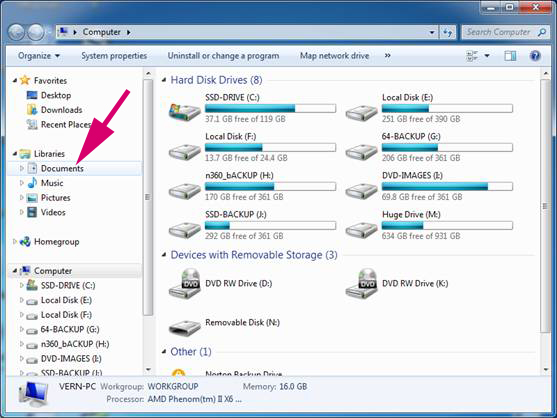
4
Right click on the "Documents" folder under "Libraries"--left
side
5
Left click on "Properties"
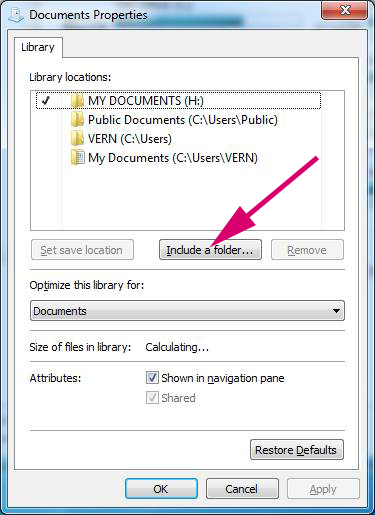
6 Click on "Include a Folder"
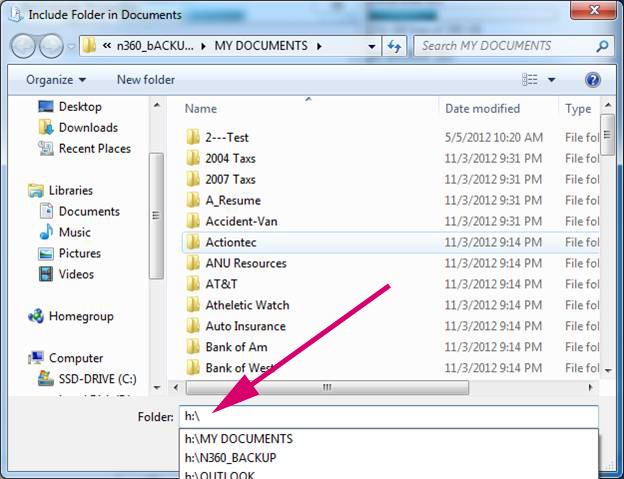
7 Enter the drive letter: in my case above h:\ then select the "My Documents" folder that you have created on that drive.
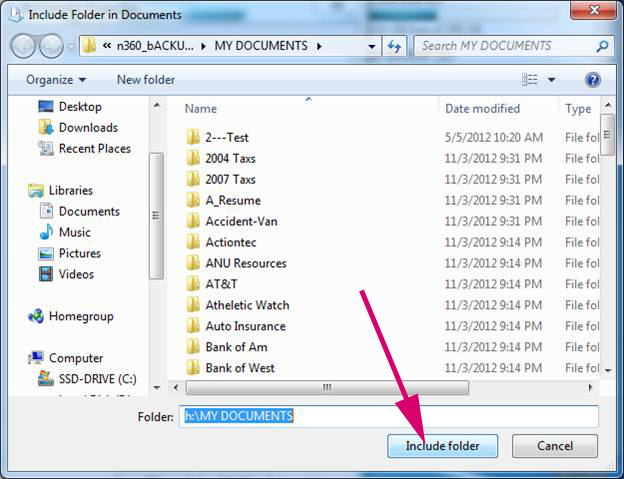
8 Click on "Include Folder" now that folder will show up at the bottom of the window as shown below here.
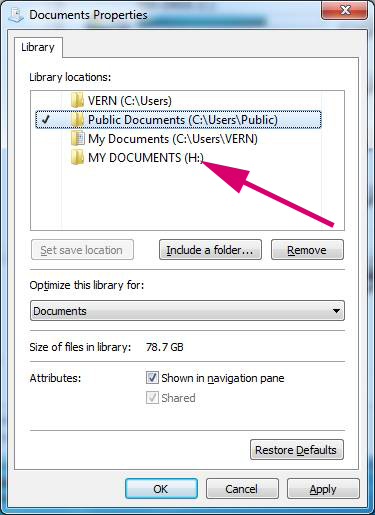
9 Right click on that folder and select :Set as default save location and then it will have an arrow to the left of it as shown below.
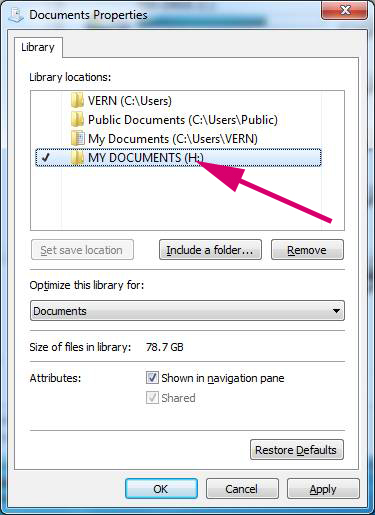
10 Right click on that folder and select "Move Up" until it is at the top
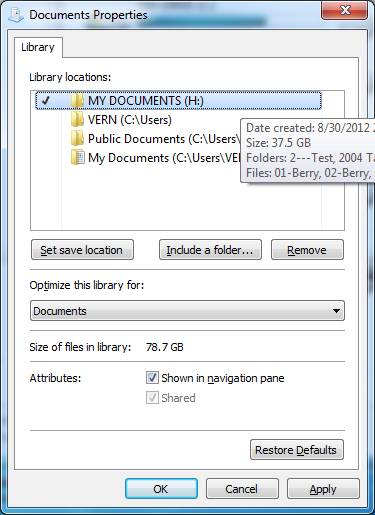
11 Click on "Apply"--"OK" and you are done